Can Google Analytics Actually Track Your Affiliate Links?
Google Analytics is free, powerful, and already installed on most websites. If you're an affiliate marketer, it makes sense to ask: can GA4 handle my affiliate link tracking?
The short answer: yes, but with some important caveats. Google Analytics 4 can track clicks on affiliate links, measure traffic by source, and help you understand which content drives the most engagement. What it can't do is directly connect those clicks to your affiliate revenue — that data lives in your affiliate network dashboards.
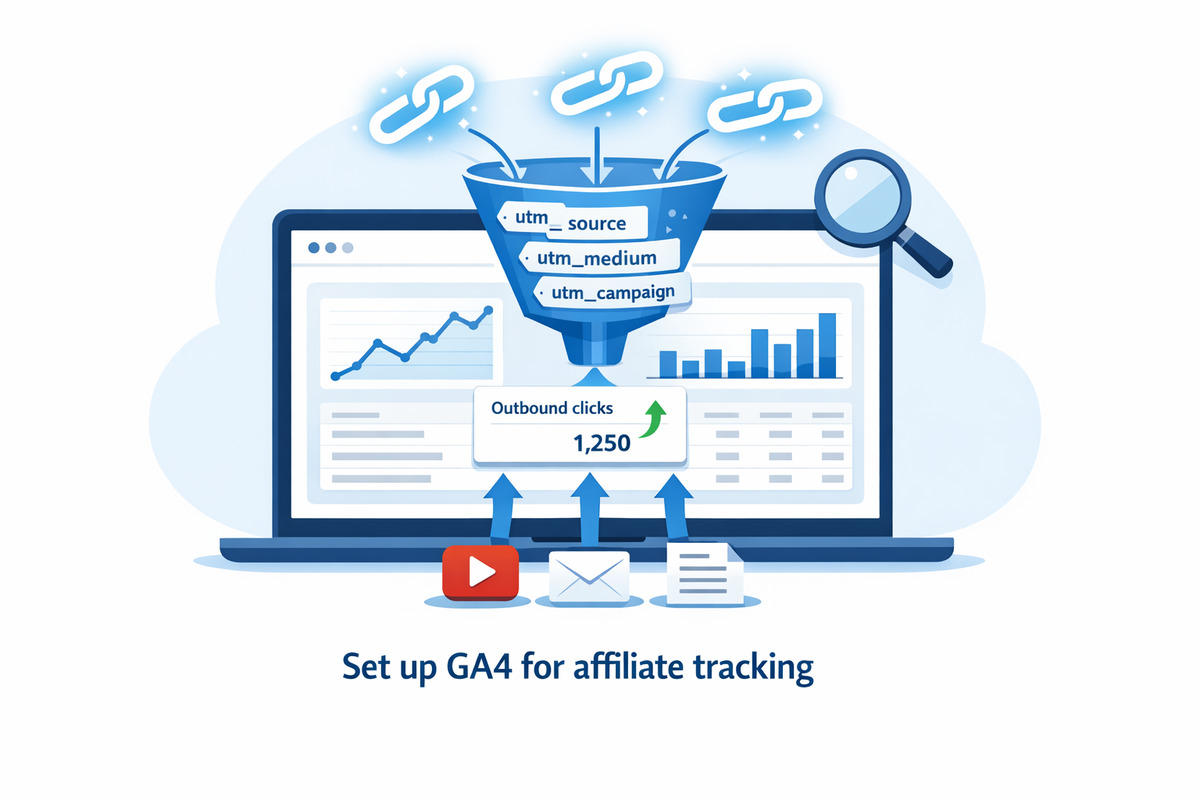
This guide walks you through setting up GA4 specifically for affiliate marketing: from creating your property to tracking outbound link clicks, tagging your affiliate links with UTM parameters, and building reports that actually help you make decisions.
By the end, you'll have a working GA4 setup that tells you where your affiliate clicks come from, which content converts best, and where to focus your time.
What Google Analytics Can (and Can't) Do for Affiliate Marketing
Before we dive into setup, let's be honest about what GA4 is good at — and where it falls short for affiliate marketers.
What GA4 Does Well
- Tracks visitor sources to your website. See exactly which channels (organic search, direct, social, referral, email) send traffic to your blog.
- Tracks outbound link clicks. With enhanced measurement enabled, GA4 automatically records every click that leaves your site — including affiliate link clicks.
- Measures user behavior on your site. How long visitors stay, which pages they read, and whether they click your affiliate links.
- Segments by UTM parameters. If you tag your incoming links with UTMs, GA4 shows you traffic by source/medium/campaign.
- Free forever. No cost, no limits for most creators.
Where GA4 Falls Short for Affiliates
- Can't track clicks on links outside your website. If you share an affiliate link on YouTube, Instagram, or in an email, GA4 doesn't see those clicks. It only tracks clicks that happen on pages you own.
- Doesn't connect clicks to revenue. GA4 knows someone clicked. It doesn't know if they bought anything. That data stays in your affiliate network dashboard.
- Requires manual UTM tagging. For source data to work, you have to manually tag every affiliate link with UTM parameters before sharing it.
- Has a learning curve. GA4 replaced Universal Analytics in 2023 and uses an event-based model that's more flexible but also more complex. Custom reports take setup time.
- Privacy limitations. Ad blockers, iOS tracking prevention, and third-party cookie restrictions affect GA4's data accuracy.
Step 1: Create Your Google Analytics 4 Property
If you don't already have GA4 set up, here's how to get started.
- Go to analytics.google.com and sign in with your Google account.
- Click "Start measuring" if this is your first time, or click the admin gear icon → "Create property" if you already have an account.
- Enter a property name. Use your website name or your brand (e.g., "Tech Review Blog").
- Set your reporting time zone and currency. This affects how data displays in reports.
- Fill in business details (category, size). This is optional but helps GA4 tailor recommendations.
- Select business objectives. Choose "Generate leads" or "Examine user behavior" — these enable relevant default reports.
- Create a data stream. Choose "Web" and enter your website URL and a stream name (e.g., "Main Website").
After creating the data stream, GA4 will show you a Measurement ID (starts with "G-"). You'll need this to connect your website to GA4.
Step 2: Install the Tracking Code on Your Website
How you install GA4 depends on your platform:
WordPress
The easiest option is a plugin:
- Site Kit by Google — official Google plugin that connects GA4, Search Console, and AdSense in one place
- MonsterInsights — popular GA4 plugin with affiliate link tracking features built in
- GA Google Analytics — lightweight, free plugin that just adds the tracking code
Install your chosen plugin, enter your GA4 Measurement ID, and you're done. No code editing required.
Custom HTML Website
Add the GA4 tracking code to every page of your site. Paste this in the <head> section, replacing G-XXXXXXXXXX with your Measurement ID:
<script async src="https://www.googletagmanager.com/gtag/js?id=G-XXXXXXXXXX"></script>
<script>
  window.dataLayer = window.dataLayer || [];
  function gtag(){dataLayer.push(arguments);}
  gtag('js', new Date());
  gtag('config', 'G-XXXXXXXXXX');
</script>
Shopify, Wix, Squarespace
Each platform has a dedicated GA4 integration in their settings. Search for "Google Analytics" in your site's admin panel and follow the prompts to connect your Measurement ID.
Verify Installation
Wait a few minutes, then go to GA4 → Reports → Realtime. Visit your website in another tab. You should see yourself appear as an active user in real time. If you do, tracking is working.
Step 3: Enable Enhanced Measurement
This is the step that makes GA4 actually useful for affiliate marketing. Enhanced Measurement automatically tracks several events — including outbound link clicks — without requiring any custom code.
- In GA4, go to Admin (gear icon, bottom left)
- Under "Data collection and modification," click Data streams
- Click your website data stream
- Toggle Enhanced measurement on (it's usually on by default)
- Click the gear icon next to it to see what's being tracked
Enhanced Measurement tracks these events automatically:
| Event | What it tracks | Useful for affiliates? |
|---|---|---|
page_view |
Every page load | ✅ Baseline traffic measurement |
scroll |
When users scroll 90% of the page | ✅ Engagement indicator for long posts |
click (outbound) |
Clicks on links to other domains | ✅✅ This is affiliate link tracking! |
view_search_results |
Internal site searches | Limited |
video_start, video_progress |
YouTube video engagement (embedded videos) | Limited |
file_download |
PDF, ZIP, and other file downloads | Limited |
The outbound click event is the one we care about. Every time a visitor clicks a link on your site that goes to a different domain — including affiliate links to Amazon, ShareASale, or any merchant — GA4 records it.
Step 4: Verify Affiliate Link Clicks Are Being Tracked
Let's make sure your affiliate link clicks actually show up in GA4.
- Visit your website and click one of your affiliate links (it's okay — you can close the tab immediately)
- In GA4, go to Reports → Realtime
- Scroll down to the "Event count by Event name" card
- Look for a
clickevent
You should see the click event with a count of 1 (or more, if other visitors have clicked too). Click on the event name to drill in and see which link was clicked — you'll see URLs under the link_url parameter.
Step 5: Tag Your Affiliate Links with UTM Parameters
Enhanced measurement captures that someone clicked, but for off-site sharing (YouTube, email, social), you need UTM parameters to track where your traffic came from.
Add UTM parameters to every link you share outside your website. A tagged link looks like this:
https://yourblog.com/best-headphones?utm_source=youtube&utm_medium=video&utm_campaign=headphones-review
The 3 UTM Parameters You Actually Need
| Parameter | Purpose | Example values |
|---|---|---|
utm_source |
Where the link was shared | youtube, instagram, email, twitter, pinterest |
utm_medium |
The type of channel | video, social, newsletter, story, bio |
utm_campaign |
The specific content or campaign | headphones-review, q2-launch, welcome-sequence |
For a detailed breakdown of UTM parameters, naming conventions, and common mistakes, see our complete UTM parameters guide.
Use Google's Campaign URL Builder
Instead of building UTM links by hand, use Google's free Campaign URL Builder at ga-dev-tools.google/campaign-url-builder/. Enter your URL and UTM values, and it generates the tagged link for you. No typos, no mistakes.
Step 6: Build Reports That Actually Help You
GA4's default reports are too generic for affiliate marketing. Here are the custom reports worth building.
Report 1: Traffic by UTM Source/Medium
This shows you which platforms send traffic to your website.
- Go to Reports → Acquisition → Traffic acquisition
- By default, you'll see traffic grouped by channel. Change the primary dimension to Session source / medium using the dropdown above the table
- You'll now see traffic broken down by your UTM-tagged sources
This tells you if your YouTube → blog traffic is actually landing, and how much of it. Combine it with click data to calculate downstream affiliate performance.
Report 2: Outbound Clicks by Destination
This is the most important report for affiliate marketers. It shows which affiliate links are getting clicked on your website.
- Go to Reports → Engagement → Events
- Click the
clickevent in the list - Scroll down to see "Event parameters" — look for
link_urlandlink_domain - You can filter or segment by domain to see just Amazon clicks, just ShareASale clicks, etc.
To make this a regular report you can revisit, consider creating a custom Exploration (more on that below).
Report 3: Top Pages Driving Affiliate Clicks
Which of your blog posts actually get affiliate clicks? This report answers that.
- Go to Explore in the left sidebar
- Click "Blank" to create a new exploration
- In the Dimensions panel, add Page path and screen class and Event name
- In the Metrics panel, add Event count
- Drag "Page path" to Rows and "Event count" to Values
- In the Filters section, add a filter: Event name exactly matches
click
You'll now see a table showing each page on your site and how many outbound clicks it generated. This is gold — it tells you which blog posts are actually sending traffic to affiliate products.
Report 4: Conversion Funnel by UTM Source
This is advanced but valuable: see how visitors from different sources behave differently.
- Create a new exploration (Explore → Funnel exploration)
- Define steps: Step 1 = page_view (landing page), Step 2 = scroll (90% of page), Step 3 = click (outbound)
- Break down by "Session source / medium"
You'll see drop-off rates at each step, segmented by where the visitor came from. Visitors from YouTube might drop off at Step 2 (they don't scroll), while visitors from your email list click through at 3x the rate. That's actionable data.
Step 7: Mark Affiliate Link Clicks as Key Events (Conversions)
GA4 lets you mark certain events as "key events" (formerly called "conversions"). This is useful because key events get prioritized in reports and can be used in attribution modeling.
To mark outbound clicks as a key event:
- Go to Admin → Events
- Find the
clickevent in the list - Toggle Mark as key event on
Now GA4 will treat affiliate clicks as conversions. You'll see them in conversion reports, and you can use them in the Attribution section to see which channels drive the most affiliate clicks.
Advanced: Track Only Affiliate Link Clicks (Not All Outbound)
If you want cleaner data, you can create a custom event that fires only when someone clicks an affiliate link (based on the destination domain). This requires Google Tag Manager (GTM).
Quick Setup with Google Tag Manager
- Set up GTM at
tagmanager.google.comand install the container code on your site - Create a new trigger: Trigger Type = "Click - Just Links," fire on "Some Link Clicks," condition = "Click URL contains amazon.com" (or your affiliate domain)
- Create a new tag: Tag Type = "Google Analytics: GA4 Event," Event Name =
affiliate_click, add parameters forlink_urlandproduct - Attach the trigger you created
- Publish the container
Now GA4 will record a dedicated affiliate_click event every time someone clicks an Amazon link. Repeat for each affiliate network (ShareASale, Impact, etc.) with additional triggers.
This approach gives you clean data specifically about affiliate clicks — separate from general outbound link clicks — but it's significantly more setup than using Enhanced Measurement alone.
Step 8: Connect the Data to Revenue
Here's where GA4 hits its fundamental limit. Google Analytics can tell you:
- How many people clicked your Amazon link
- Which page they were on when they clicked
- Which UTM source they came from
- What device they used
But GA4 cannot tell you how many of those clicks resulted in a sale. That data lives in Amazon Associates, ShareASale, Impact, and your other affiliate dashboards.
To connect the two, you need to do manual revenue mapping:
- Each week, export outbound click data from GA4 (which products got clicked, how many times, from which sources)
- Export sales data from your affiliate dashboards (which products sold, how much revenue)
- Match them in a spreadsheet to calculate revenue per click (RPC) by product and source
For a detailed walkthrough of this process, see our guide on how to know which affiliate links actually make you money.
Common Problems and How to Fix Them
Problem: "I Don't See Any Click Events in GA4"
Possible causes:
- Enhanced Measurement is off. Go to Admin → Data streams → your stream, and make sure it's enabled.
- The link opens the same domain. Outbound click tracking only fires on external links. Internal links don't trigger the event.
- Ad blocker is running. Many ad blockers block GA4 requests. Test in incognito with extensions disabled.
- Data processing delay. GA4 has a ~24-48 hour delay for standard reports. Use the Realtime report for immediate feedback.
Problem: "My UTM Traffic Shows as 'Direct' or '(not set)'"
This usually means the UTM parameters were stripped before GA4 saw them:
- Your redirect chain drops query parameters (some URL shorteners do this — test yours)
- You used uppercase in UTM values (GA4 treats "YouTube" and "youtube" as different sources — always use lowercase)
- Typos in parameter names (
utm_sorceinstead ofutm_source)
Problem: "GA4 Numbers Don't Match My Affiliate Dashboard"
They never will, and that's normal. Here's why:
- GA4 tracks clicks on your site. Affiliate dashboards track clicks that reach the merchant. Some clicks get lost (ad blockers, redirects, user closes tab).
- Attribution windows differ. Most affiliate programs use 24-hour or 30-day cookies. GA4 uses session-based attribution by default.
- Cross-device tracking differs. A user might click your link on mobile and buy on desktop. GA4 and affiliate networks handle this differently.
Use GA4 for click-level insights and your affiliate dashboards for revenue truth. Don't expect the numbers to match exactly.
When GA4 Is Enough — and When You Need More
Honest advice: Google Analytics is great for understanding behavior on your own website, but it has real limitations for affiliate marketing specifically.
GA4 Is Enough If:
- Your affiliate marketing is primarily through your blog or website
- You're comfortable with the setup complexity (events, custom reports, GTM)
- You don't mind manually tagging every link with UTMs
- You want a free solution and have the time to configure it
- You don't need per-platform analytics for YouTube, email, or social
You'll Want Something More If:
- You share affiliate links across multiple platforms (YouTube, email, social, podcasts)
- You want automatic source detection without manual UTM tagging
- You want click data from links that don't live on your website
- You want device and location data specifically for affiliate clicks
- You don't want to learn GTM, events, and custom explorations just to see basic affiliate data
For creators who primarily promote on platforms other than their blog, GA4 alone leaves big gaps. A dedicated affiliate link tracker fills those gaps by tracking clicks at the link level, regardless of where the link was shared.
GA4 vs. Dedicated Affiliate Trackers: Quick Comparison
| Feature | Google Analytics 4 | Affiliate Link Tracker |
|---|---|---|
| Cost | Free | Free tier to $29/mo |
| Tracks on-site behavior | ✅ Excellent | ❌ |
| Tracks off-site clicks (YouTube, email, social) | ❌ | ✅ |
| Automatic source tagging | ❌ Manual UTMs required | ✅ Automatic |
| Per-link analytics | ✅ With setup | ✅ Out of the box |
| Setup complexity | Medium-High | Low |
| Connects to affiliate revenue | ❌ Manual mapping | ❌ Manual mapping |
| Privacy/ad blocker resistance | Moderate | High (server-side) |
Neither tool replaces your affiliate dashboard for revenue data. The question is which one helps you understand what's driving that revenue.
5 GA4 Settings Every Affiliate Marketer Should Enable
- Enhanced Measurement. Turns on outbound click tracking without code. Critical for affiliates.
- Data retention: 14 months. Default is 2 months. Change to 14 months under Admin → Data Settings → Data Retention so you can analyze year-over-year trends.
- Google Signals. Enables cross-device tracking for signed-in Google users. Under Admin → Data collection.
- Exclude internal traffic. Filter out your own visits so your browsing doesn't skew data. Admin → Data streams → Configure tag settings → Define internal traffic.
- Referral exclusion list. Add your own domain and any domains that shouldn't count as referrals (like payment processors). Admin → Data streams → Configure tag settings → List unwanted referrals.
The Bottom Line
Google Analytics 4 is a capable tool for affiliate marketers — especially if your traffic lives on your own website. With Enhanced Measurement enabled, you can track outbound clicks, see which pages drive the most affiliate engagement, and segment traffic by UTM source.
But GA4 has two fundamental limitations: it can't track clicks that happen outside your website (social media, email, YouTube), and it can't directly connect clicks to affiliate revenue. To get the full picture, you'll need to pair GA4 with either manual UTM discipline or a dedicated affiliate link tracker.
Here's a smart approach:
- Set up GA4 with Enhanced Measurement for on-site click tracking
- Tag all off-site links (YouTube, email, social) with UTM parameters
- Build custom reports to see outbound clicks by page and source
- Manually map GA4 click data to affiliate dashboard revenue weekly
- Consider adding a dedicated link tracker for off-site click visibility
The creators who get the most out of GA4 aren't the ones who use every feature — they're the ones who focus on two things: which pages drive affiliate clicks and which sources send the best traffic. Start there, and let the data guide your next moves.
For a broader look at tracking methods, see our complete guide to tracking affiliate links in 2026. To understand UTM parameters in depth, check out our UTM parameters guide.
Want Simpler Affiliate Tracking Than GA4?
Linkgaze gives you per-platform click data, automatic UTM tagging, and revenue-focused analytics — without the complexity of setting up events, custom reports, and filters in Google Analytics.
- No events or custom reports to configure
- Automatic source detection across every platform
- Built specifically for affiliate marketers